



Video Banking
Video Banking
Convenient and secure service - with a friendly face!
Life is busy, and we know it’s not always easy to visit a branch. That’s why we’re making banking more convenient than ever. With secure video chat, you can connect face-to-face with our team—right from your phone, tablet, or computer.
Video availability: Monday - Friday: 9:00AM - 5:00PM; Saturday: Appointments Only

What can you do over video banking?
Please note: This service is not currently available for loan interactions.
Video availability: Monday - Friday: 9:00AM - 5:00PM; Saturday: Appointments Only
To get started, you'll need...
1 - A Photo ID
You must have a valid, government issued photo ID to get started.
2 - Video Capabilities
Your device must have video chat capabilities. How else can we see your top-notch face?
3 - To Allow Access
You must allow access to the microphone and the camera on the device. Alerts will pop up asking for permission, so no IT degree required.
Common Questions
-
Step-by-step: How do I start a Video Banking call?
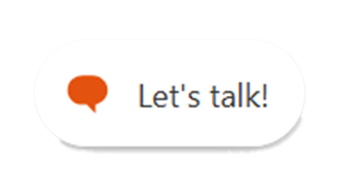
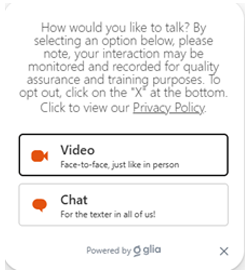
To begin a video chat, you'll need to click on our chat button on the bottom of the screen that says "Let's Talk." Here, you'll be able to choose between a text-based chat option and our video banking option.
Note: If you're joining a video banking call from an appointment you booked, please refer to the link provided in your confirmation and/or reminder email. If this does not work for you, you can follow the below instructions, just make sure you mention your appointment.
Step 1 Step 2 Step 3 Click the chat button on the bottom of your screen. It looks like this:
Next, you'll choose your preferred option. In this case, we'll click on video.
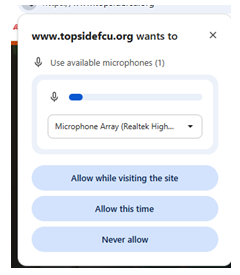
We'll need you to allow access to your device's microphones. You can choose whichever option you wish, but if you click "Never Allow," video banking will not work.
Step 4 Step 5 After you allow access to your microphone, you'll see the following. You will see the operator, but not yourself. You will need to click the video button to turn your camera on.
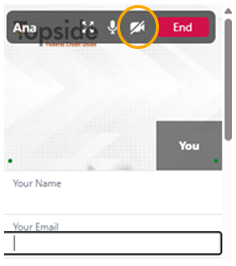
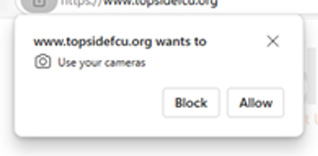
Finally, you'll have to allow camera access on your device. You will see a pop-up toward the top of your screen, click Allow. Now, let's chat!
-
Step-by-step: How Does CoBrowsing work?
CoBrowsing on Desktop
Let us securely navigate certain webpages with you in real time—without ever seeing your private information or taking full control of your device.
Step 1 Step 2 Step 3 To begin, you'll need to retrieve a CoBrowsing code to give to the operator. You'll simply need to find the "Get CoBrowsing Code" button on the bottom of the website.

Next, you'll need to allow/accept the CoBrowsing session.
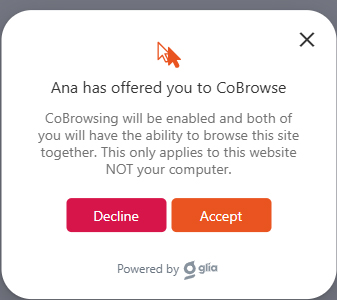
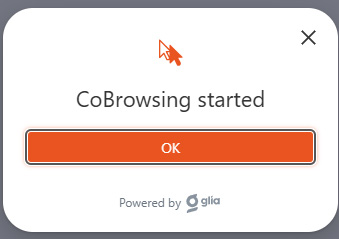
Once you accept the session, you'll receive an alert CoBrowsing has started. Click "OK".
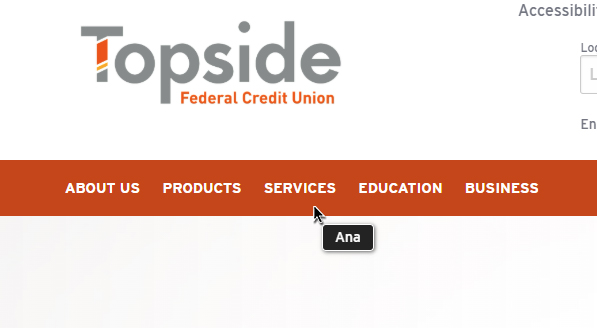
When your CoBrowsing session begins, it will look similar to the below image. You will see your representatives cursor and their name next to it.
CoBrowsing on a Mobile Device
Not only can we CoBrowse on a desktop, we can do it inside of our mobile app as well to better assist you with any Online Banking requests. Generally, the same approval concepts apply. However, getting your code is slightly different.
Step 1 Step 2 When logged on to your Online Banking App, open the main menu. Scroll down to the "Help" tab, and then select "CoBrowsing."
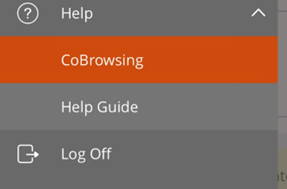
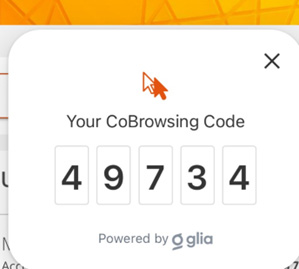
Once you do this, your code will pop up and look similar to the following image. Provide the code and start CoBrowsing!
-
How does Screen Sharing Work?
Share your screen with a representative so they can see exactly what you’re seeing and guide you step-by-step.
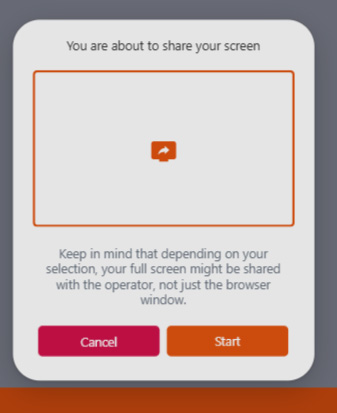
In order to begin, you must accept the screen sharing request. Read the warning(s) provided, then click "Start" if you'd like to proceed.
You'll be able to choose which screens you want to share.
- Chrome Tab – a specific tab in Google Chrome
- Window – a specific type of application (ex. Chrome, Excel, Adobe)
- Entire Screen – all contents of the computer screen
-
What are the hours for Video Banking?
- Monday - Friday: 9:00AM - 5:00PM
- Saturday: Appointments Only
-
What kind of video options are there?
- One-way or Two-way video
- On Screen Guidance
- Secure Document Exchange
- Chat (for sensitive information)
- CoBrowsing/Screen Sharing
Warning: You Are Leaving This Site.
You are leaving the Topside Federal Credit Union website.
You are being directed to a third-party website.
This link is provided for your convenience. Please note that this third-party website is not controlled by Topside Federal Credit Union or subject to our privacy policy.
Thank you for visiting our site. We hope your visit was informative and enjoyable.
You are about to follow a link to [Link]. To proceed, click 'Continue' below. To remain on this site, click 'Cancel' below.